Steam Deck controls not working?
Update the game, turn off a forced Proton compatibility layer and try the official controller layout. Update 95 added native Linux and built-in controller support.
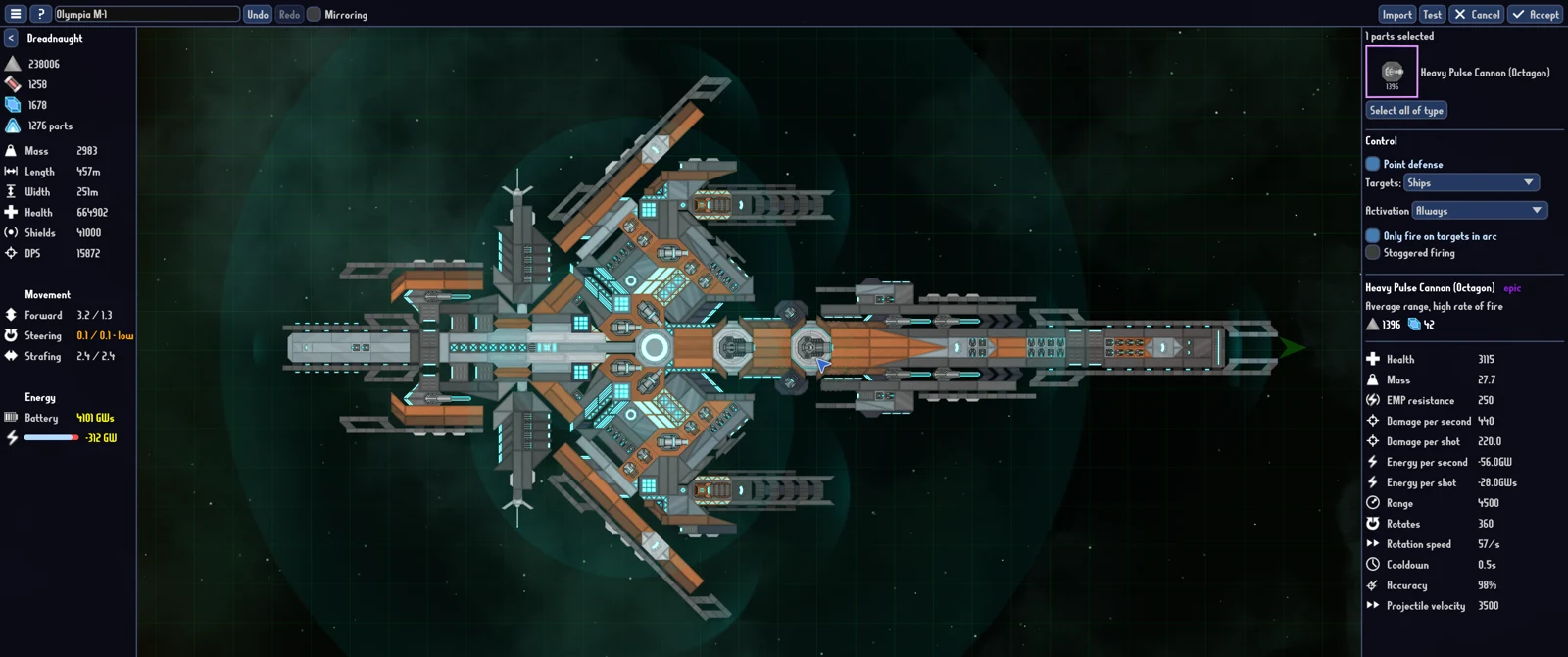
The first thing to try is the native Linux version with no forced compatibility layer, followed by the official controller layout. This addresses the specific missing-thrust problem reported by Steam Deck players. It does not mean every controller issue on every Linux distribution has the same cause.
Update 95, released October 2, 2026, introduced native Linux and replaced the game's Steam Input implementation with built-in controller support. Advice written before that update can describe a different setup. A player in the original thruster discussion later confirmed that the game worked with no forced compatibility layer and the official layout.
1. Update before changing your layout
Let Steam finish downloading the current game update and close a running copy before testing again. Check the October 2 Update 95 announcement against the version you are using. The earlier August fix and September Proton advice in the same discussion are useful history, but they precede the native Linux release.
Keep your troubleshooting focused on the full game. The separate Steam demo has its own application entry, and these instructions do not establish that the demo received every full-game fix at the same time. If you are testing the demo, include that distinction when reporting the issue.
2. Remove a forced Proton setting
In the Steam library, open the game's Properties, go to Compatibility, and check whether you previously enabled a forced compatibility tool. If so, turn that override off for this test. Allow Steam to finish any resulting file changes, then launch the game again. The aim is to let Steam select the native build instead of deliberately running the Windows version through Proton.
Do this as a controlled comparison. Make one change, launch, and test thrust before changing several more settings. Switching between multiple Proton versions, editing every binding and changing game options in one pass makes it harder to identify the cause when movement returns.
The developer said the new Linux build worked on their own Deck. One player then reported success without forced compatibility. Those are useful reports; they are not a guarantee for all Linux installations. Another participant using CachyOS still reported receiving the Windows executable, so desktop Linux may need a separate installation check.
3. Try the official layout as your baseline
Open the game's controller configuration in Steam and try the official layout before rebuilding a custom one. The successful player report specifically mentions using that layout. Treat this as a known starting point rather than proof that custom layouts are unsupported.
Launch into a situation where you can safely test movement. Confirm that thrust responds, then check steering and aiming. After the baseline works, restore your preferred changes one at a time. If an old custom layout was created for the previous Steam Input implementation, compare its behavior with the official layout before assuming the ship itself is broken.
Update 95 changed the input implementation, and individual layouts can differ. Follow the game's current control hints and your selected layout for actual bindings.
4. Check the other Update 95 behaviors
The patch also added automatic pause when a controller disconnects and Steam's virtual keyboard when entering text on Deck. These are separate from the thrust fix. If the game pauses unexpectedly, check whether the controller disconnected before changing the ship or restarting a mission.
For text entry, try the current native build and the normal text field first. If the virtual keyboard does not open, include the affected field and your build choice in the report. A keyboard problem is more useful to diagnose when it identifies a particular action, such as naming a design, instead of saying only that all Deck controls are broken.
If thrust still does not respond
| What you see | What to check next |
|---|---|
| The game still launches through a forced Proton tool | Recheck the game's per-title Compatibility override and restart the game after changes finish. |
| The official layout works but a custom layout does not | Compare the layouts and reapply changes individually. |
| The game pauses as input stops | Check for controller disconnection; automatic pause is an Update 95 feature. |
| Native Linux still has no movement | Report the build, layout, device and exact action that fails. |
| A desktop Linux installation receives Windows files | Describe the distribution and executable actually launched; do not assume the Deck success applies unchanged. |
Use the original thruster discussion or the developer's official support page to report the problem. Include the game version, whether a compatibility override is enabled, whether you tried the official layout, and what happens when you attempt thrust. Avoid including private account details or an entire unrelated system log.
Once controls work
If movement responds but the ship still feels ineffective, separate input trouble from design trouble. Changing your tech choices may help you build around a different goal; see Respecialize and tech points. A working controller does not solve an empty fuel supply, so check the fuel and trader guide before the next long route.
Further reading
- Update 95: native Linux and built-in controller support — developer announcement, October 2, 2026.
- Steam Deck thrusters discussion — developer replies and player confirmation. The successful setup is a player report.
- All guides.