Reset your tech tree with Respecialize
Open the tech tree and use Respecialize. Added in Release 93, it locks all parts and returns all tech points. It is separate from save backups and Rewind to arrival.
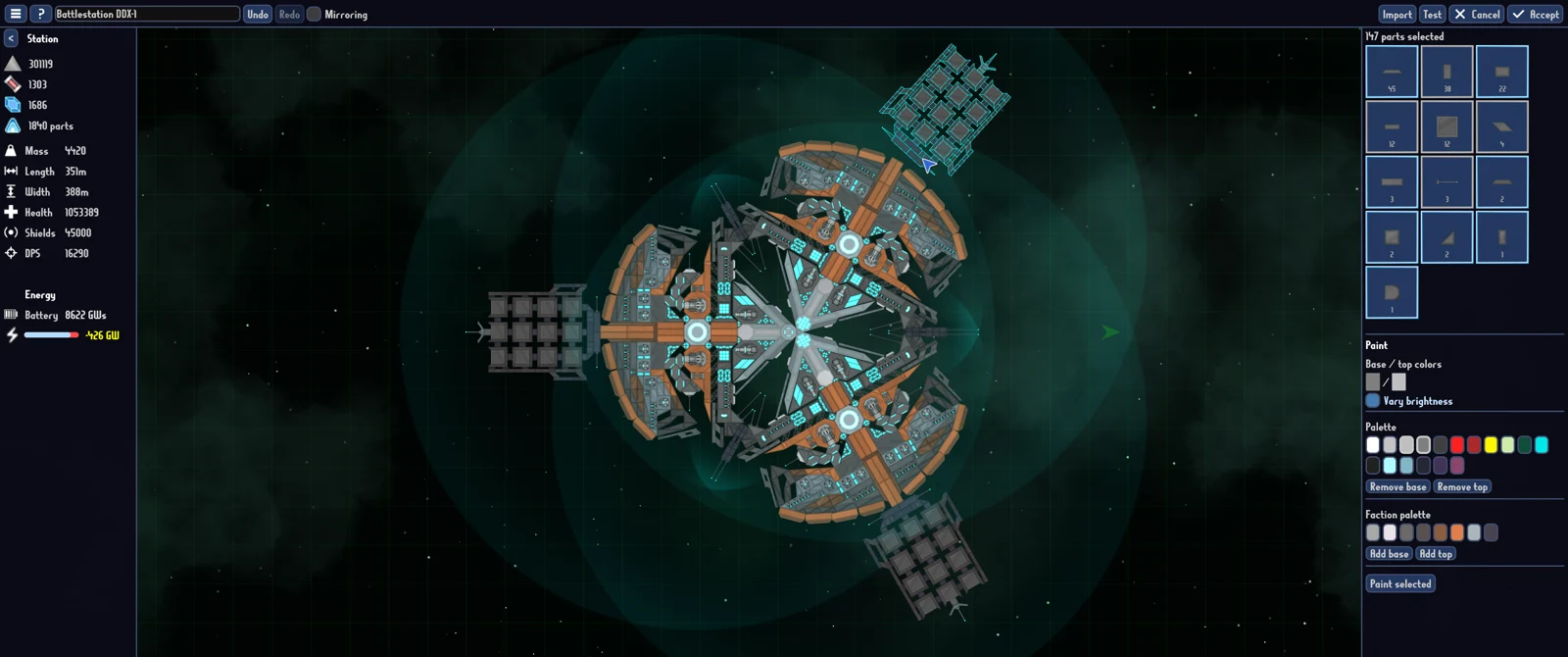
Respecialize returns all tech points and locks all parts. The button was added to the tech tree in Release 93 on September 25, 2026. Use it when you want to change the technologies you have selected, rather than start a new save simply to make another ship plan.
There are three different actions that can sound like a reset: respecializing technology, rewinding a combat arrival, and dealing with a backed-up save. They solve different problems. Choosing the right one first avoids treating a progression change as a lost-save problem.
What Respecialize changes
Open the tech tree and find Respecialize. The developer's stated result is that all parts are locked and all tech points are returned. Your next step is to choose the technology you want to unlock again around the ship you intend to build.
Do not read “returns all tech points” as a promise to refund every resource you have spent in the game. The Release 93 notes describe the technology reset specifically. They do not say that this button resets your rank, restores a lost save, refunds metal spent on a vessel, or changes your faction. Those are different questions.
Before using the reset, make a note of which technologies your next design depends on. A quick screenshot or a written list of important parts is enough to give you a comparison afterwards. You are planning how to spend the returned points, not trying to reproduce every choice automatically.
Rebuild around one goal
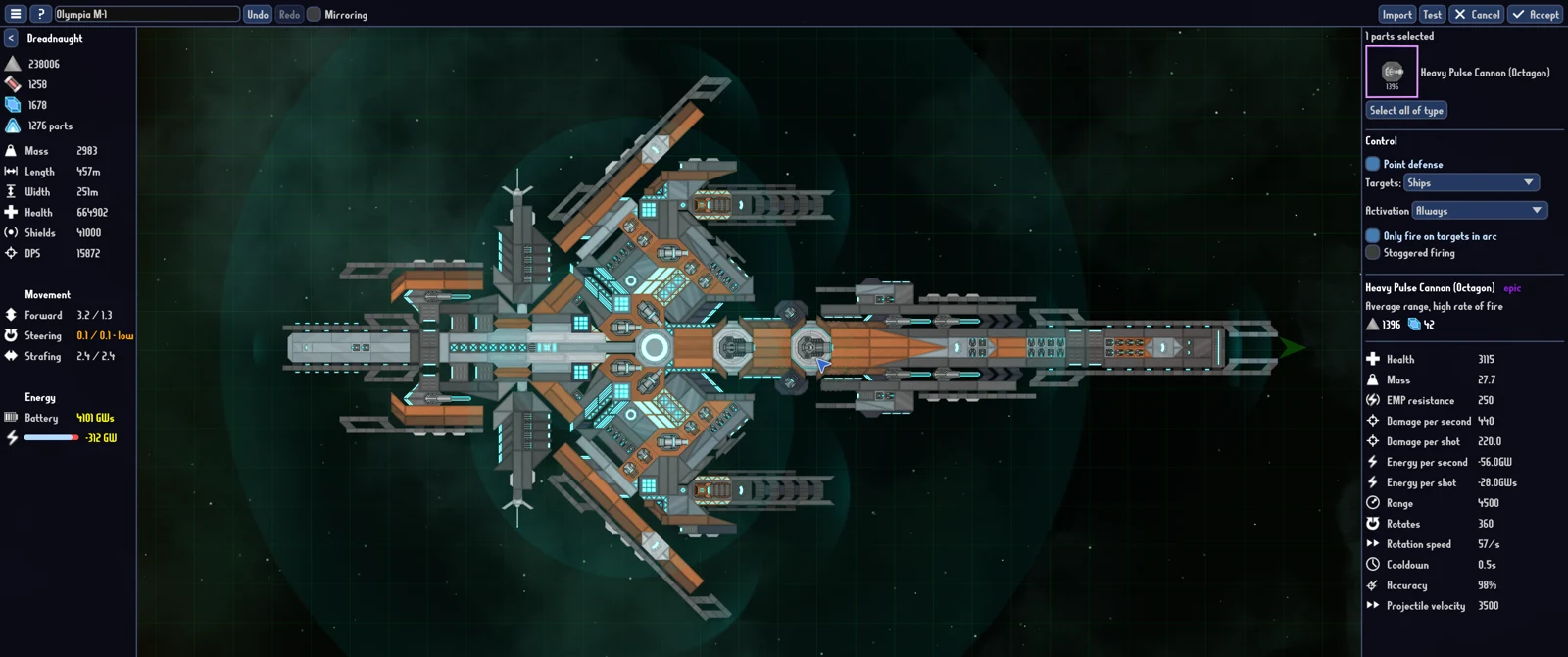
Choose the problem your new technology plan should solve. For example, a carrier project needs suitable hangar and drone choices; a ship that cannot sustain its weapons needs a review of its energy balance. The official game describes weapons, thrust, armor and energy as design constraints, so a larger weapon alone is not a complete upgrade plan.
Work backwards from the parts you actually intend to use. Unlock the essential pieces first, then inspect the remaining options before spending every point on unrelated branches.
Once you have selected the new technology, return to the editor and review the resulting design. Check the current warnings and energy information, which Release 93 made easier to see on smaller screens. If you are switching into carrier play, use the hangar and custom-drone guide to check the limits that apply to the drone itself.
How to tell whether you used the right reset
| Your goal | Relevant action | What it is for |
|---|---|---|
| Reassign spent tech points | Respecialize in the tech tree | Relocks parts and returns tech points. |
| Retry after a combat death | Rewind to arrival | An in-game combat recovery option added with 1.0. |
| Locate a save backup after a serious problem | Backup-folder button in the save-slot screen | Opens the folder containing automatic ZIP backups. |
| Guarantee restoration of any older state | No such guarantee in these notes | The backup system has no built-in restore function. |
After Respecialize, check that the technology choices have been relocked and that your tech points are available to spend. If the button is missing, confirm that you are using a full-game version containing Release 93 or later. If the result differs from the official description, report the version and action instead of clicking repeatedly to try to force it.
Automatic save backups are separate
Release 93 introduced automatic backups: loading a save causes the save-game directory to be zipped and backed up, with up to five backups retained. A button on the save-slot screen opens the backup folder. The developer describes the system as a fallback for serious problems and explicitly says there is no built-in restore function.
Opening the folder lets you locate a backup. If you are trying to recover progress, preserve the current files and the backup you intend to examine before any manual restoration attempt. Ask the developer for a procedure matching your platform and the actual problem before extracting files over an active save.
The official support page says Windows save data is normally under a subfolder of AppData/Local/Fantastimaker. That is a Windows location, not a verified Steam Deck path. Use the in-game backup-folder button when available rather than translating the Windows path into a guessed Linux directory.
Rewind is not a technology refund
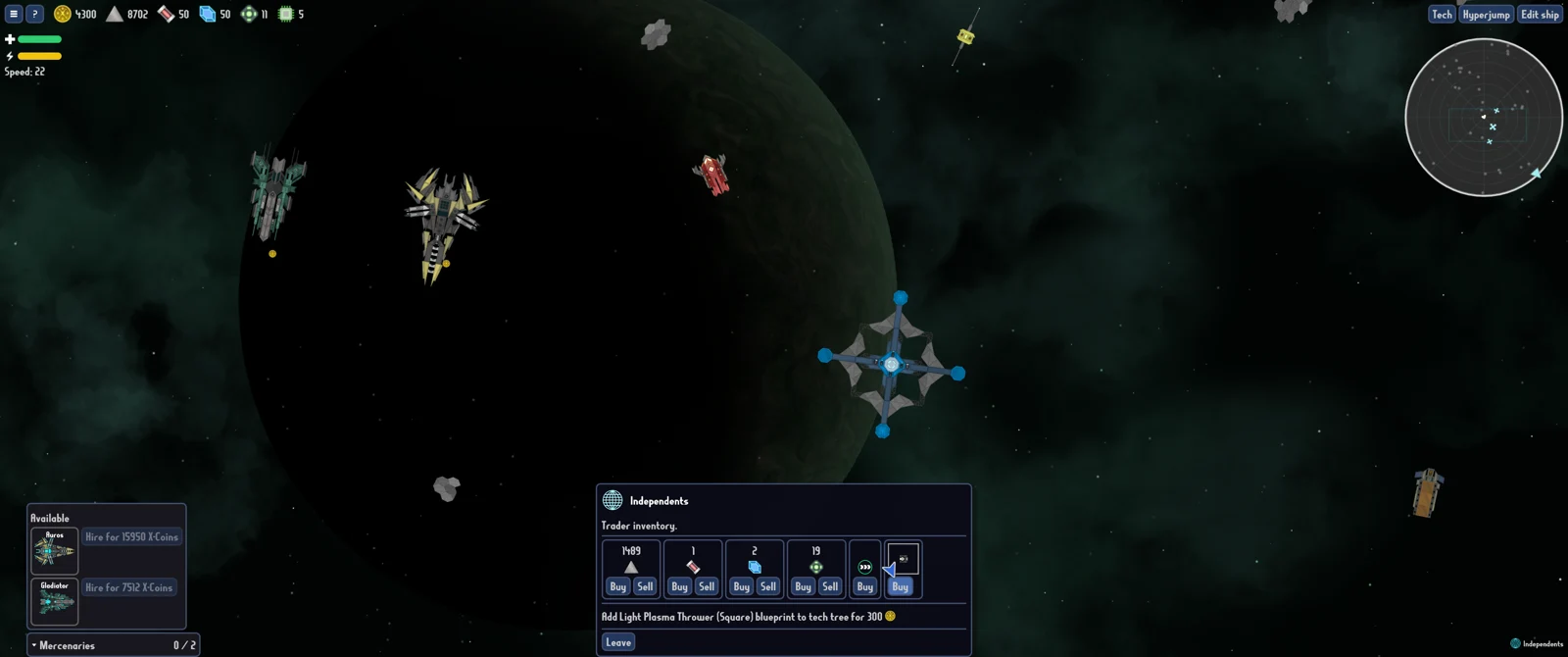
The 1.0 release added Rewind to arrival on death. Later patches fixed several related problems: Release 93 addressed resources and unlocks not rewinding correctly, and Update 95 addressed trader blueprints changing after rewind and a ship returning too far beyond the area border.
Those changes explain why an older account of rewind can differ from current behavior. They do not turn the feature into a save archive browser or a way to respend your tech points. For a technology change, use Respecialize; for a post-death retry, use the option offered by the game in that context.
Continue with a practical test
Once you have reassigned technology, test the design around the original problem you wanted to fix. Check sustained firing if energy was the issue, or the hangar's cost and size information if you wanted drones. Keep the test focused so a control issue does not get mistaken for a bad technology plan; the Deck controls guide covers the recent input change.